Install COSMIC DE + Niri on Ubuntu 24.04
Table of Contents
- Requirements
- Installation Steps
- Step 1: Configure cargo-update for future updates
- Step 2: Install dependencies
- Step 3: Install Niri
- Step 4: Install xwayland-satellite
- Step 5: Install COSMIC Extension Extra Sessions
- Step 6: Configure Niri
- Step 7: Log out, choose "COSMIC on Niri" session, and login
- Step 8: Bonus — Install COSMIC Clipboard Manager from source
- Automated Upgrades with Topgrade
- Strengths
- Limitations
- Workarounds
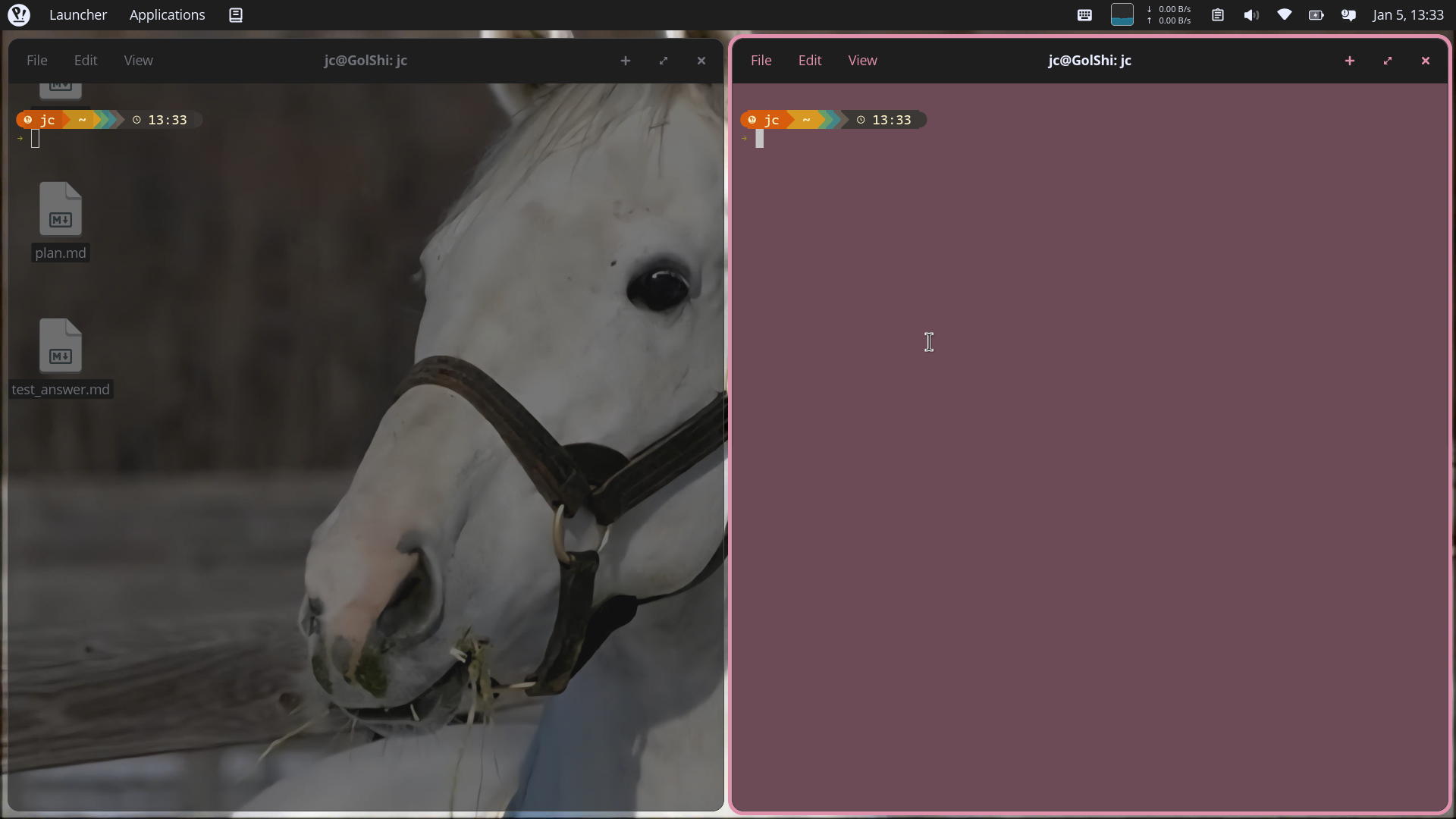
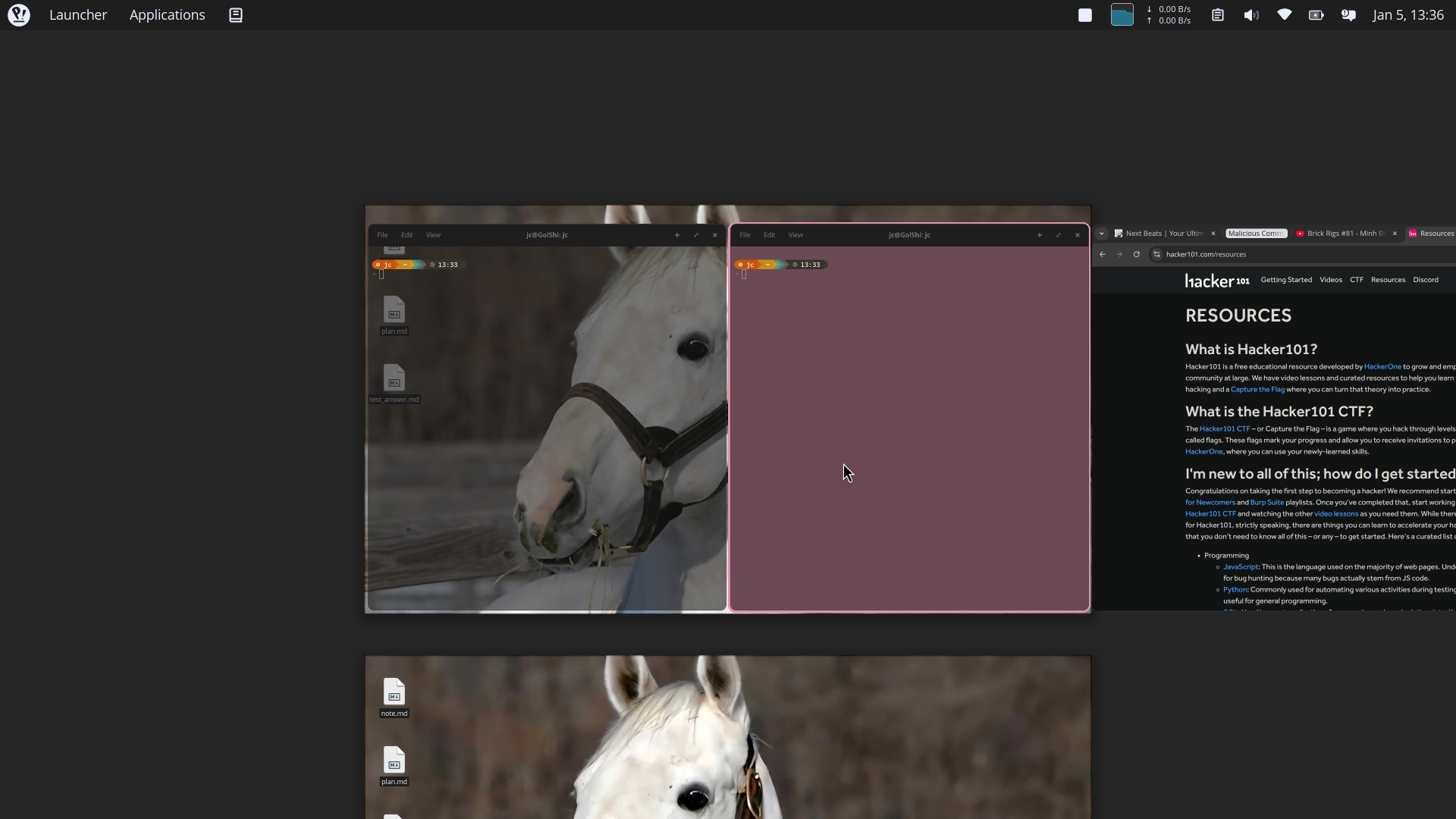
- Screenshots
A comprehensive guide to installing COSMIC Desktop Environment with Niri compositor on Ubuntu 24.04 LTS, including workarounds for screen recording and screencasting.
A detailed guide to installing COSMIC Desktop Environment with the Niri compositor on Ubuntu 24.04 LTS. This post also covers automated upgrades with Topgrade and workarounds for screen recording/screencasting.
Requirements
- COSMIC DE (built-in to Pop!_OS 24.04 LTS or other bleeding-edge distros; these steps run inside Ubuntu 24.04 LTS, and most components must be built from source)
- Rust environment:
curl --proto '=https' --tlsv1.2 -sSf https://sh.rustup.rs | sh - Just:
sudo apt install just
Installation Steps
Step 1: Configure cargo-update for future updates
cargo install cargo-updateFor future updates, run: cargo install-update --all --git --locked
Step 2: Install dependencies
Install wlsunset to configure night light, and brightnessctl to handle brightness keybinds:
sudo apt install gcc clang libudev-dev libgbm-dev libxkbcommon-dev \
  libegl1-mesa-dev libwayland-dev libinput-dev libdbus-1-dev \
  libsystemd-dev libseat-dev libpipewire-0.3-dev libpango1.0-dev \
  libdisplay-info-dev brightnessctl wlsunset
sudo usermod -aG video $USER

# For fcitx5 (Vietnamese input method)
sudo apt install fcitx5 fcitx5-bamboo fcitx5-config-qt
⚠️ Please log out after running this step to apply the group change.
Step 3: Install Niri
Clone Niri and set up the update script:
git clone https://github.com/YaLTeR/niri.git
cd niri
Create a Justfile for easy updates:
default: update-install

update-install:
    @echo "🚀 Updating Niri from Git..."
    git pull

    @echo "⚙️  Building Release (this takes a while)..."
    cargo build --release --locked

    @echo "📦 Installing to system (needs sudo)..."
    sudo install -m 755 target/release/niri /usr/local/bin/niri
    sudo install -m 755 resources/niri-session /usr/local/bin/niri-session

    sudo mkdir -p /usr/local/share/wayland-sessions/
    sudo install -m 644 resources/niri.desktop /usr/local/share/wayland-sessions/

    sudo mkdir -p /usr/local/share/xdg-desktop-portal/
    sudo install -m 644 resources/niri-portals.conf /usr/local/share/xdg-desktop-portal/

    sudo install -m 644 resources/niri.service /etc/systemd/user/
    sudo install -m 644 resources/niri-shutdown.target /etc/systemd/user/

    systemctl --user daemon-reload

    @echo "✅ Done! Logout and login again to use the new version."
Build & Install:
just update-install
# You will need root privilege to install new binaries
Step 4: Install xwayland-satellite
This adds X11 support for legacy applications:
cargo install --locked --git https://github.com/Supreeeme/xwayland-satellite.gitStep 5: Install COSMIC Extension Extra Sessions
This connects COSMIC with Niri as the compositor:
git clone https://github.com/Drakulix/cosmic-ext-extra-sessions.git
cd cosmic-ext-extra-sessions
just build
sudo just install-niri
Step 6: Configure Niri
Copy settings to ~/.config/niri/config.kdl. My settings are fairly complete for my system; you can customize them as needed.
The config below ensures that fcitx5 runs perfectly. If you don't use fcitx5, you can remove the environments block and the fcitx5 spawn command.
Dependency: fcitx5
View the full config.kdl (click to expand)
input {
    keyboard {
        xkb { }
    }
    touchpad {
        tap
        natural-scroll
    }
    mouse {
        accel-speed -0.55
        accel-profile "flat"
    }
}

output "eDP-1" {
    mode "1920x1080@144"
    scale 1.25
    transform "normal"
    position x=0 y=0
    variable-refresh-rate on-demand=true
}

layout {
    gaps 8
    center-focused-column "never"
    preset-column-widths {
        proportion 0.33333
        proportion 0.5
        proportion 0.66667
        proportion 1.0
    }
    default-column-width { proportion 0.5; }

    focus-ring {
        width 4
        active-color "#E08FAC"
        inactive-color "#252538"
    }
    border {
        off
        width 4
        active-color "#E08FAC"
        inactive-color "#36364F"
        urgent-color "#9b0000"
    }
}

environment {
    MOZ_ENABLE_WAYLAND "1"
    GDK_BACKEND "wayland,x11"
    QT_QPA_PLATFORM "wayland;xcb"
    SDL_VIDEODRIVER "wayland"
    CLUTTER_BACKEND "wayland"
    XDG_CURRENT_DESKTOP "Niri"
    XDG_SESSION_TYPE "wayland"
    XDG_SESSION_DESKTOP "Niri"
    GTK_IM_MODULE "wayland"
    QT_IM_MODULE "wayland"
    XMODIFIERS "@im=fcitx"
    SDL_IM_MODULE "wayland"
}

spawn-at-startup "cosmic-ext-alternative-startup"
spawn-at-startup "fcitx5" "-d" "-r"
spawn-at-startup "wlsunset" "-t" "3600" "-l" "10.8" "-L" "106.6"
spawn-at-startup "xwayland-satellite"

hotkey-overlay {
    skip-at-startup
}

screenshot-path "~/Pictures/Screenshots/Screenshot from %Y-%m-%d %H-%M-%S.png"

window-rule {
    geometry-corner-radius 12
    clip-to-geometry true
}

cursor {
    hide-when-typing
    hide-after-inactive-ms 2000
    xcursor-size 24
}

binds {
    Mod+Shift+Slash { show-hotkey-overlay; }
    Mod+Return { spawn "cosmic-term"; }
    Mod+D { spawn "cosmic-launcher"; }
    Mod+E { spawn "cosmic-files" "~"; }
    Mod+A { spawn "cosmic-app-library"; }
    Mod+L { spawn "loginctl" "lock-session"; }
    Mod+Shift+Q { close-window; }
    Mod+W repeat=false { toggle-overview; }

    // Volume
    XF86AudioRaiseVolume allow-when-locked=true { spawn-sh "wpctl set-volume @DEFAULT_AUDIO_SINK@ 0.01+ -l 1.5"; }
    XF86AudioLowerVolume allow-when-locked=true { spawn-sh "wpctl set-volume @DEFAULT_AUDIO_SINK@ 0.01-"; }
    XF86AudioMute allow-when-locked=true { spawn-sh "wpctl set-mute @DEFAULT_AUDIO_SINK@ toggle"; }

    // Brightness
    XF86MonBrightnessUp allow-when-locked=true { spawn "brightnessctl" "--class=backlight" "set" "+5%"; }
    XF86MonBrightnessDown allow-when-locked=true { spawn "brightnessctl" "--class=backlight" "set" "5%-"; }

    // Focus navigation
    Mod+Left { focus-column-left; }
    Mod+Down { focus-window-down; }
    Mod+Up { focus-window-up; }
    Mod+Right { focus-column-right; }

    // Window movement
    Mod+Ctrl+Left { move-column-left; }
    Mod+Ctrl+Down { move-window-down; }
    Mod+Ctrl+Up { move-window-up; }
    Mod+Ctrl+Right { move-column-right; }

    // Workspaces
    Mod+1 { focus-workspace 1; }
    Mod+2 { focus-workspace 2; }
    Mod+3 { focus-workspace 3; }
    Mod+4 { focus-workspace 4; }
    Mod+5 { focus-workspace 5; }

    Mod+R { switch-preset-column-width; }
    Mod+M { maximize-column; }
    Mod+F { fullscreen-window; }
    Mod+C { center-column; }

    Print { screenshot; }
    Ctrl+Print { screenshot-screen; }

    Mod+Shift+E { quit; }
}
Step 7: Log out, choose "COSMIC on Niri" session, and login
Step 8: Bonus — Install COSMIC Clipboard Manager from source
git clone https://github.com/cosmic-utils/clipboard-manager.git
cd clipboard-manager
just build-release && sudo just install
# Test new panel immediately
pkill cosmic-panel
Automated Upgrades with Topgrade
Step 1: Create Topgrade configuration
Create ~/.config/topgrade.toml and adjust the repository locations based on your setup:
[misc]
disable = ["system", "emacs", "vim", "sheldon", "tmux", "fossil"]

[commands]
"Niri Upgrade" = "cd <path-to-niri>/niri && just update-install"
"COSMIC Clipboard Manager Update" = "cd <path-to-niri>/clipboard-manager && git pull && just build-release && sudo just install && pkill cosmic-panel"
"COSMIC Extension Extra Session Update" = "cd <path-to-niri>/cosmic-ext-extra-sessions && git pull && just build && sudo just install-niri"
Step 2: Run Topgrade
One command to update everything:
topgradeStrengths
- Inherits all COSMIC core features, including the panel and extensions
- Enjoy Niri without shell setup
Limitations
- The cosmic-app-list and workspace indicator are missing because of how Niri uses workspaces
- Shell customization is difficult because Ubuntu 24.04 requires you to rebuild components (Quickshell, Dank Material Shell, Noctalia, etc.)
- Minimize works on COSMIC but not in Niri yet
- COSMIC Settings doesn't work from the Niri session due to errors and a different configuration approach
- Can't use portals for screencasting (COSMIC and GNOME require specific sessions)
Workarounds
Screen Recording
- Install wl-screenrec (via cargo or another method)
- Record using Intel GPU acceleration:
LIBVA_DRIVER_NAME=iHD wl-screenrec -f ~/Videos/record.mp4Options:
- Use desktop audio (default): add
-audioflag - Use multiple desktop audio sources (not recommended):
# Create new source
pactl load-module module-null-sink sink_name=v_mix sink_properties=device.description="All_Audio_Mix"
# Use helvum to connect source to destination
# Record
wl-screenrec --audio-device "v_mix.monitor" -f full_audio.mp4
Screen Casting (Virtual Camera)
# Install dependencies
sudo apt install v4l2loopback-dkms wf-recorder
sudo modprobe v4l2loopback exclusive_caps=1 card_label="Niri Screen Stream"

# Check if a new video device is created (e.g., /dev/video2)
ls /dev/video*

# Activate screencast using virtual camera
wf-recorder --muxer=v4l2 --codec=rawvideo --file=/dev/video2 -x yuv420p

# Or use slurp to select a specific area
wf-recorder -g "$(slurp)" --muxer=v4l2 --codec=rawvideo --file=/dev/video2 -x yuv420p
Quick alias:
alias stream-on='sudo modprobe v4l2loopback exclusive_caps=1 card_label="Niri Stream" && wf-recorder --muxer=v4l2 --codec=rawvideo --file=/dev/video2 -x yuv420p'Screenshots